Zapier Integration Instructions
Connect CartStack with Zapier:
-
You will need a Zapier account for the integration. If you don't have one yet, you'll need to first sign up.
-
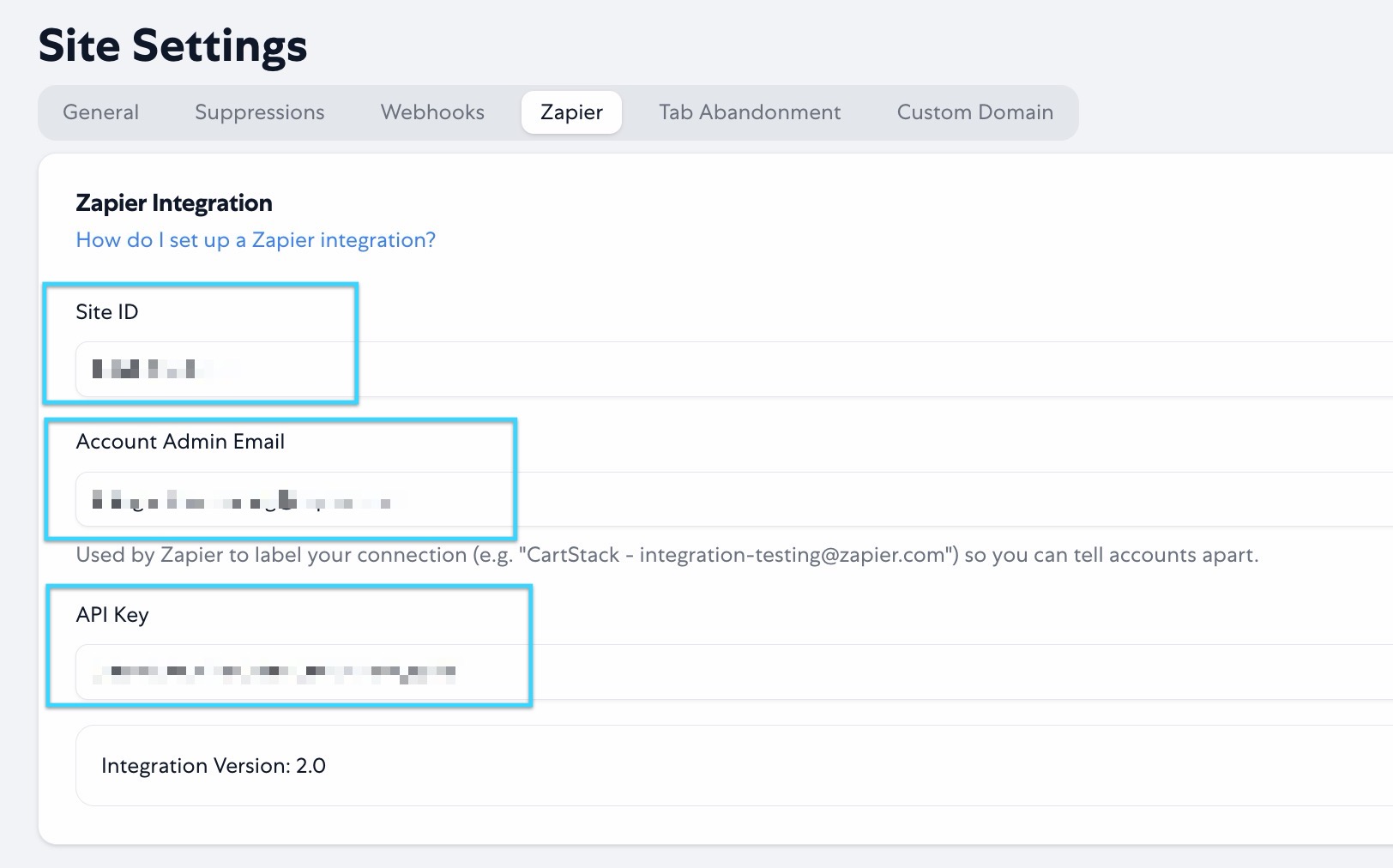
For the setup, you will need to get your CartStack Site ID, Admin Email and Zapier API key. You will find this information on the Zapier integration page under the Configuration > Settings section of your CartStack account. If you do not see the API key field, you will want to click the "Generate Zapier API Key" button to get your unique key.
-
Log into your Zapier account and click on the large orange "Create" button to get started creating the CartStack Zap.
-
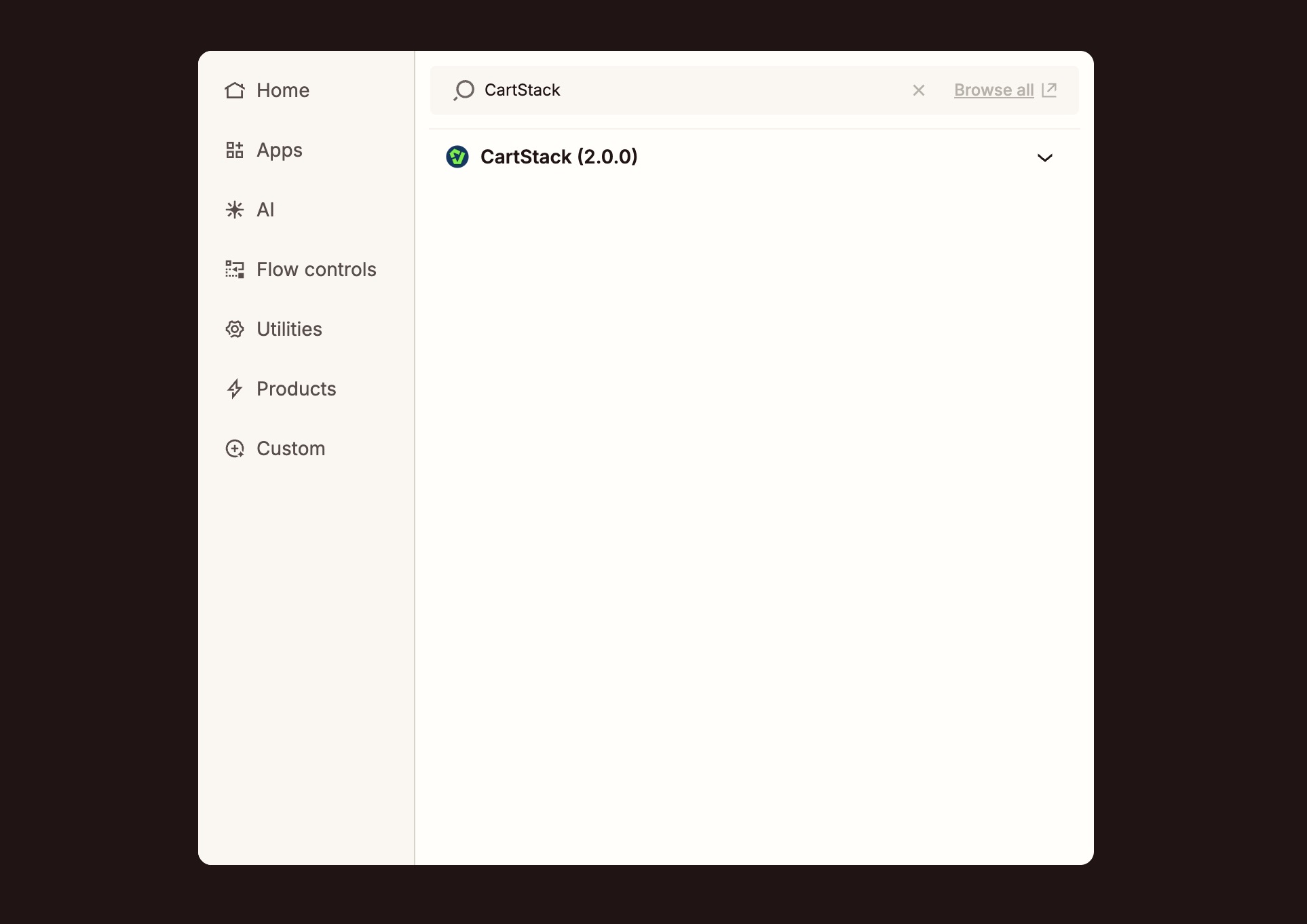
You will want to start by setting up your trigger in Zapier. To do this, choose CartStack under the app list.
-
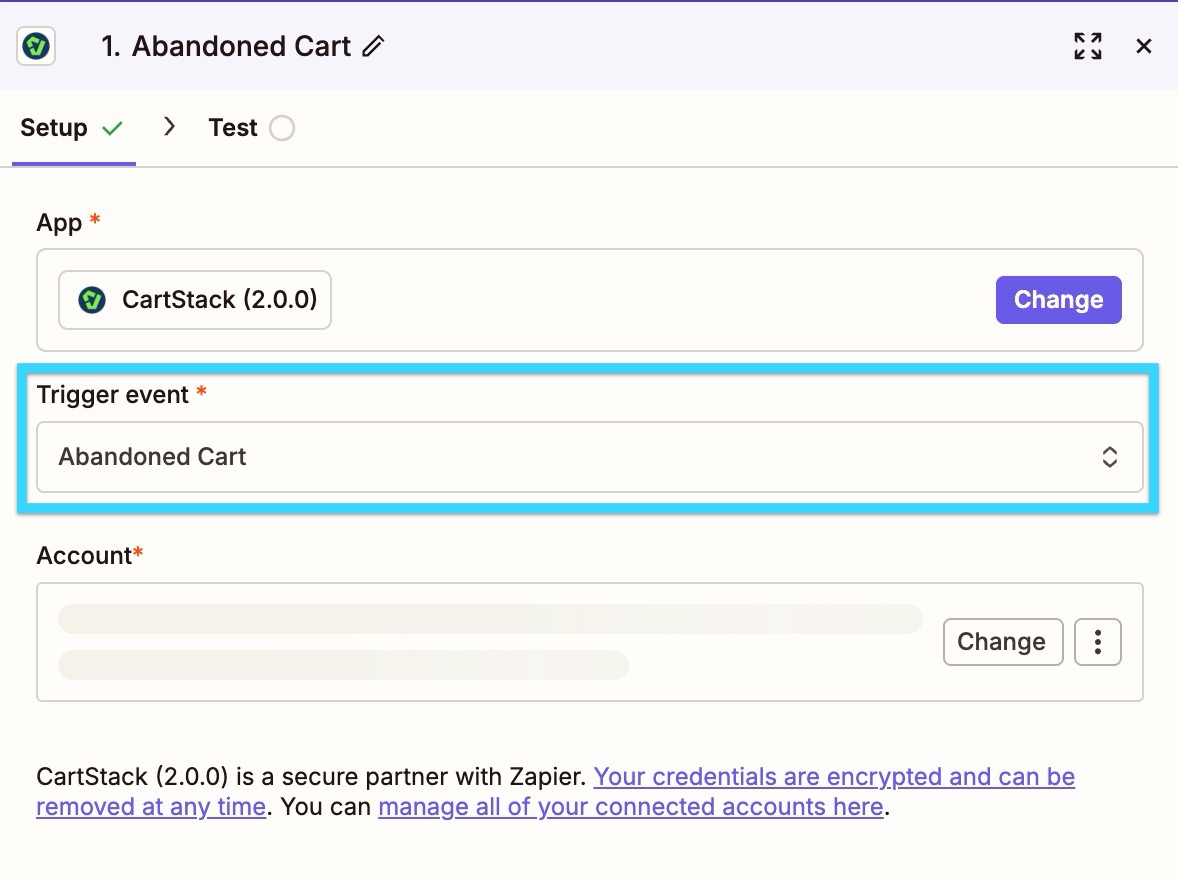
Now choose which trigger (e.g., Abandoned Cart) you would like to use to send data to the other 3rd party platform.
-
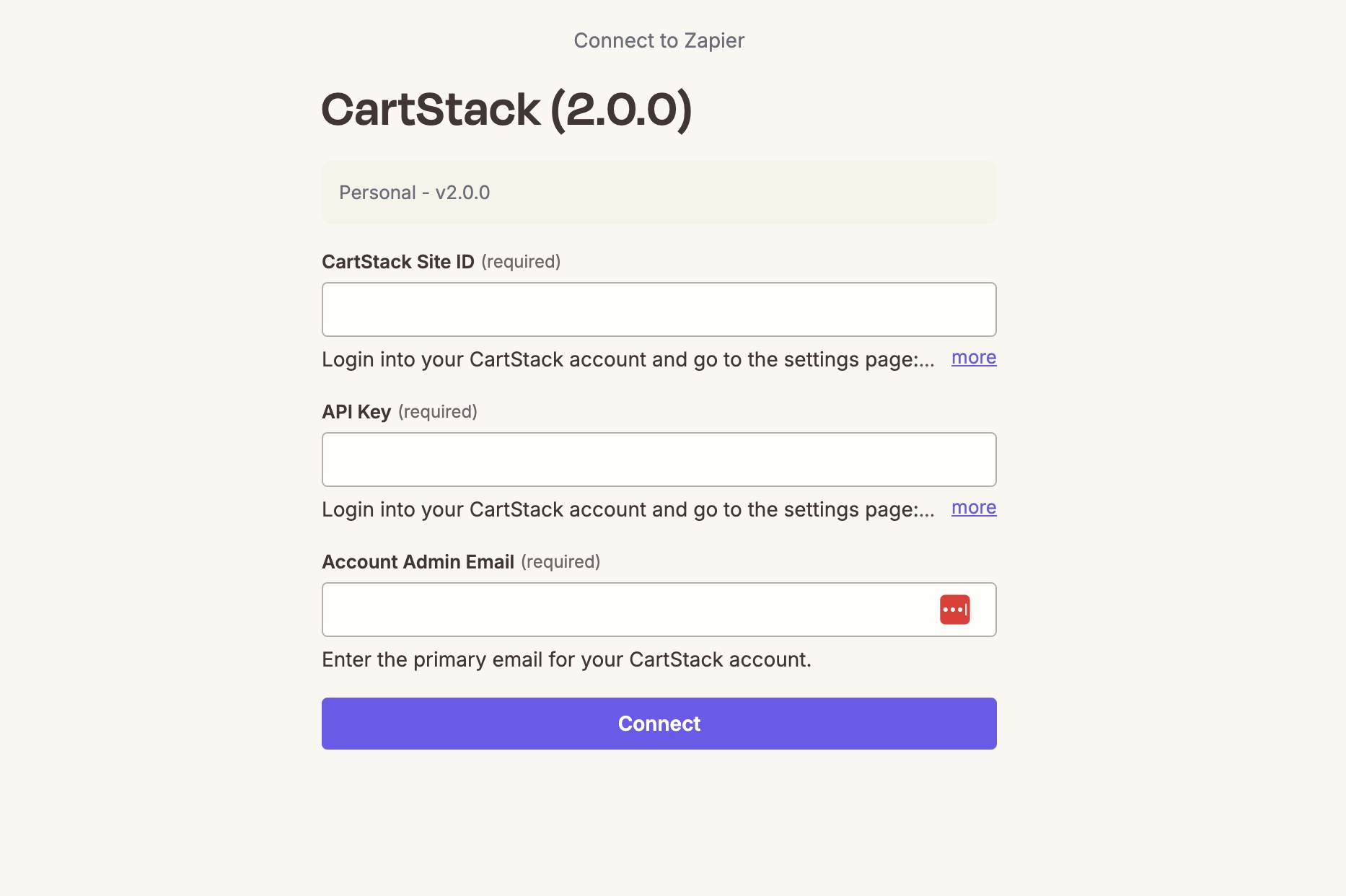
Next, you will be asked to connect to your CartStack account. Click the "Connect a New Account" button and fill in the Site ID, API Key & Account Admin Email from Step #2 above.
-
You may be asked to view sample data after the account connection is made. You can skip this section if you'd like.
-
Now that your trigger is set up, you will need to create an action step. To do this, click on the "Add a Step" button and choose "Action." This will allow you to search for the platform you would like to send the CartStack data to.
-
Once you choose the tool/platform for the action step, the rest of the setup will vary depending on what is selected. Follow the instructions from Zapier to finish your setup. Once complete, you will want to enable the Zap to make it live.
The Zapier integration is free for all CartStack clients on a PRO subscription. If you are having problems with the Zapier connection or setup, please contact us. We are happy to help!
