Orbe by Coral
CartStack integrates with the Orbe booking engine to help you recover abandoned bookings. Follow these instructions to launch a recovery campaign.
Step 1: Create your account in CartStack
Create your CartStack account here, and follow the steps to set your login & password.
Step 2: Add website details
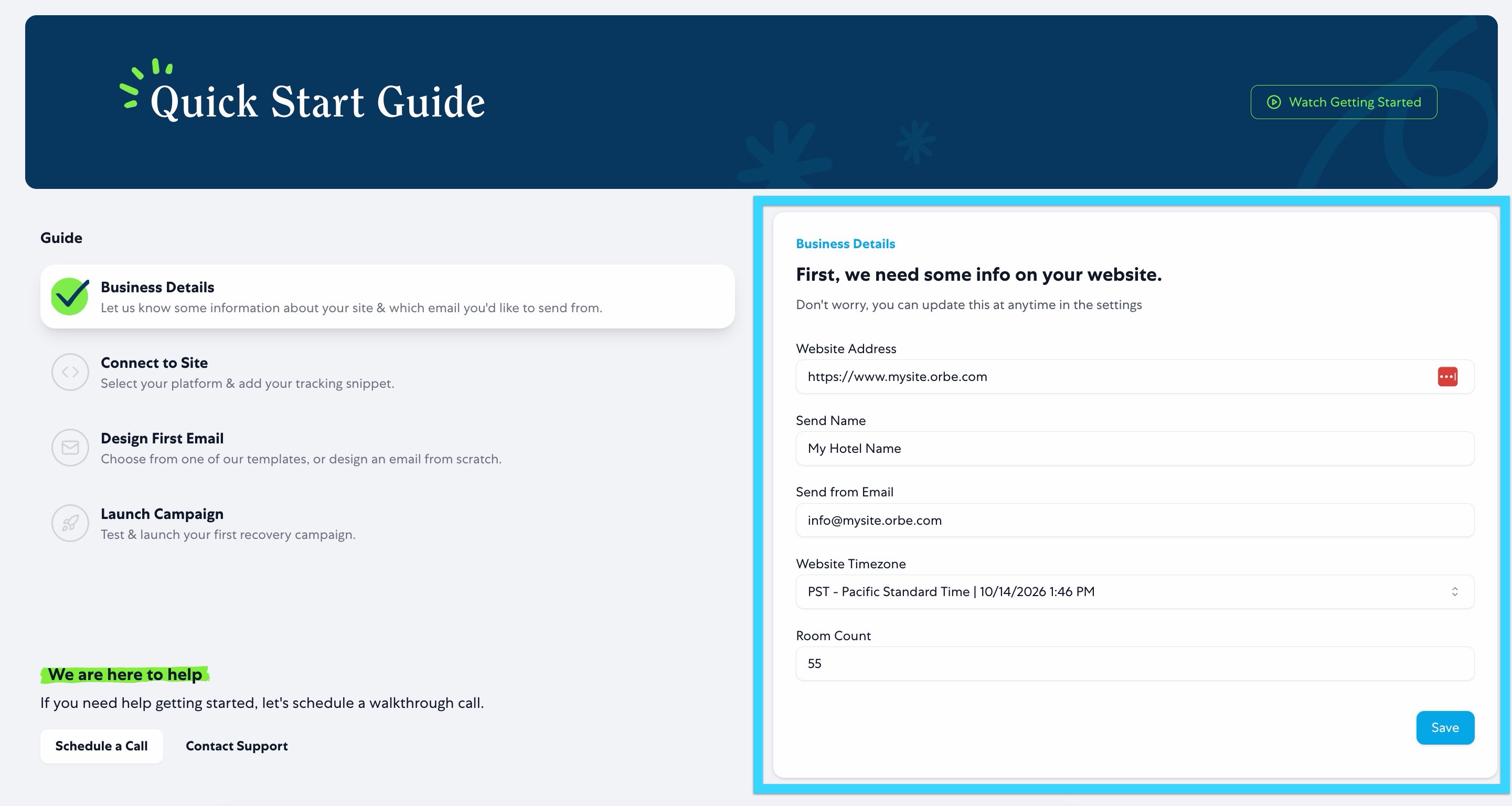
- Once in the CartStack Application, add your website details to Step 1 of the Quick Start Guide.
Step 3: Send Your Snippet to Orbe Support
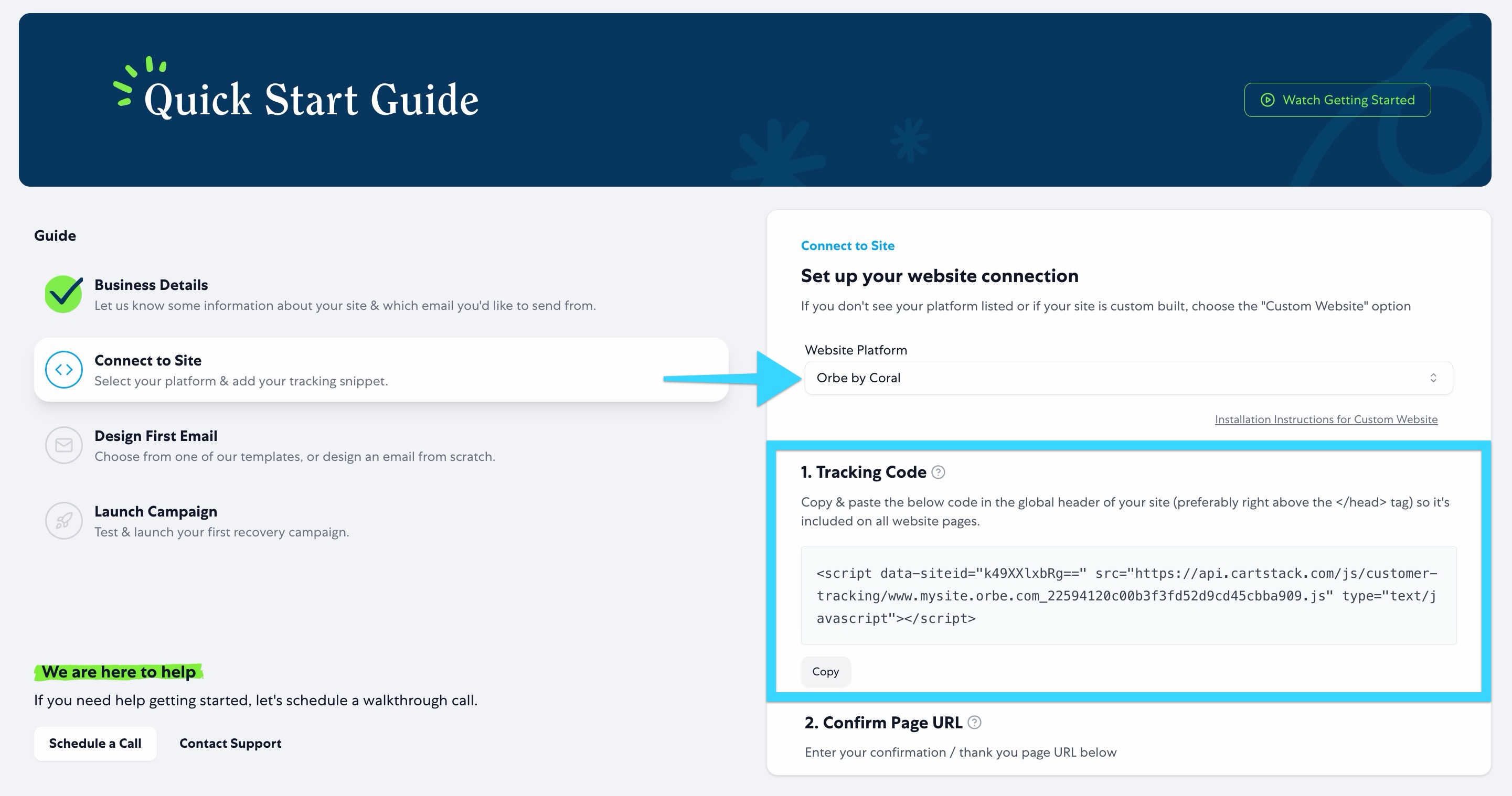
- On Step 2 of the Quick Start Guide, select Orbe by Coral from the platform dropdown.
- Copy the tracking snippet from the field.
- Send this snippet to soporteorbe@coralcr.com, and request that it be added to your booking engine & website.
[Once the script has been added]
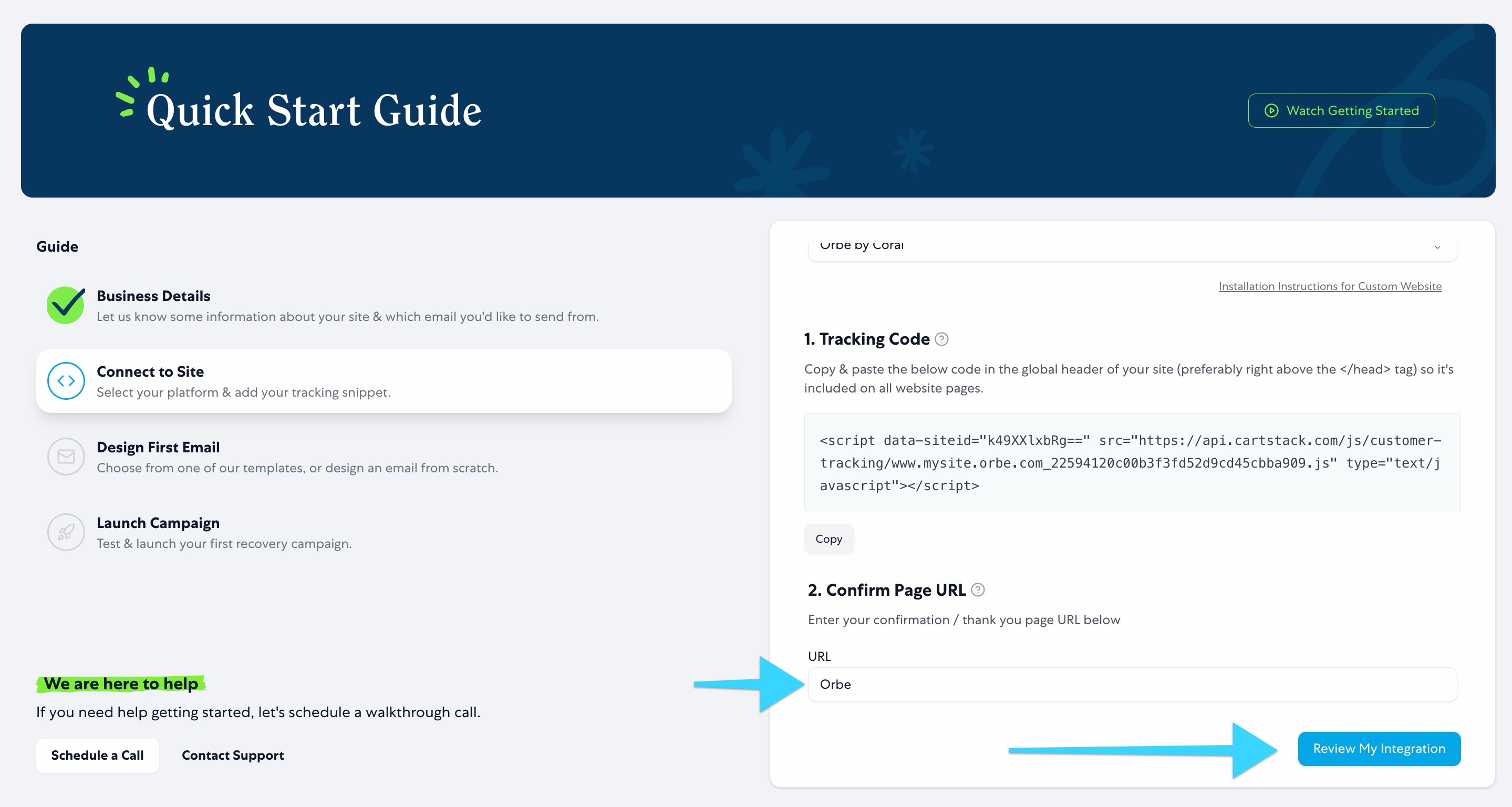
Step 4: Add "Orbe" as the Confirmation URL
- On Step 2 of the Quick Start Guide, enter Orbe into the Confirmation URL field.
- Click Review My Integration
- Support will reach out to confirm that the integration in complete.
[Once support confirms that the integration is complete]
Step 5: Place account in Test Mode
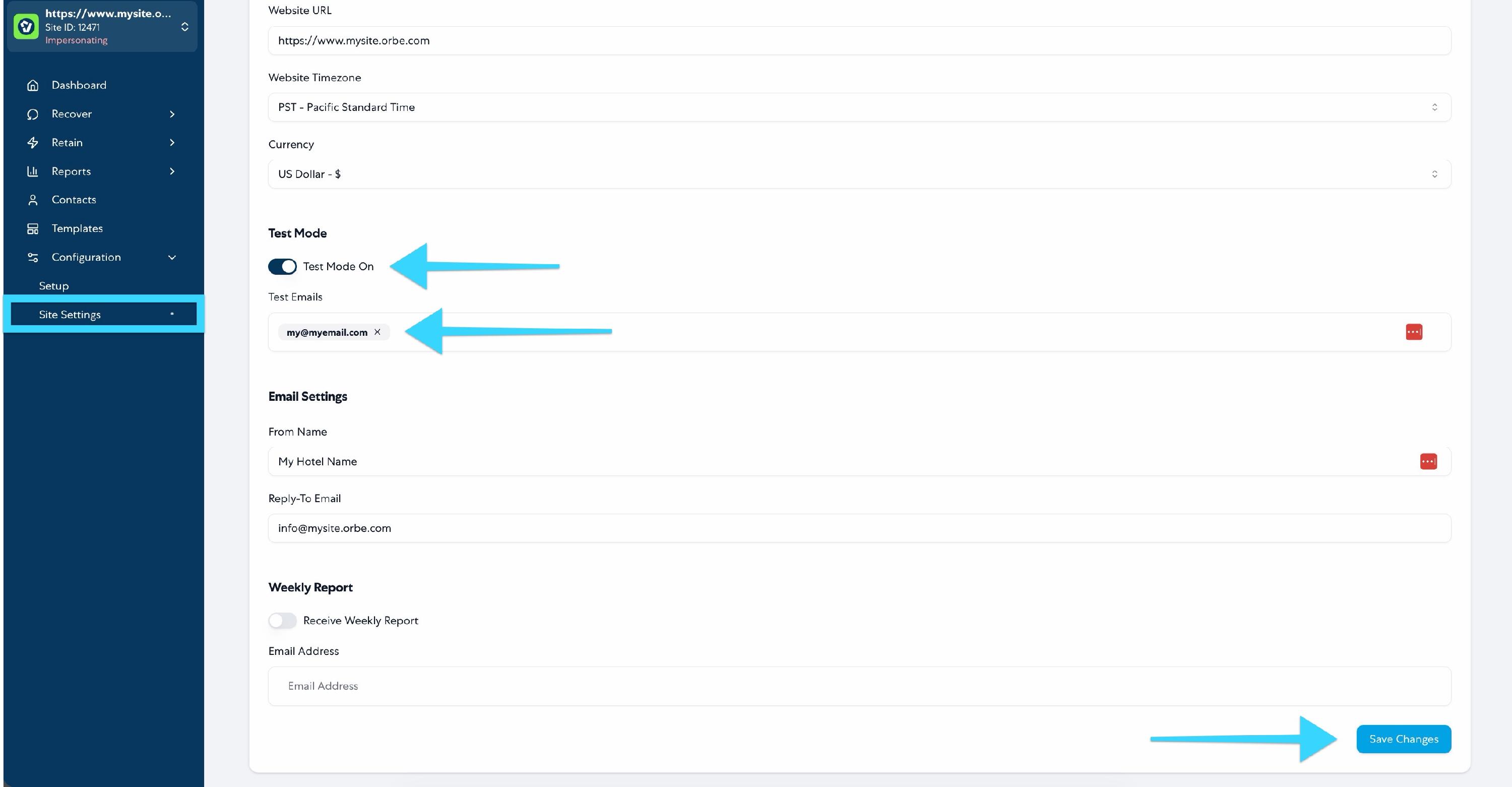
- Under Configuration > Site Settings, toggle on Test Mode.
- Add your testing email to the Test Mode field.
- Click Save Changes
Step 6: Design an email campaign
- Follow these instructions to create your email campaign.
- Once designed, ensure all emails are active.
Step 7: Test Your Campaigns
Once your integration has been confirmed and your emails are loaded into the campaign builder, you can test your campaigns by following these steps:
- Open an Incognito window in you web browser.
- Navigate to your booking engine, select dates, select a property or room, and stop on the checkout page.
- Type your test email from Step 5 into the email address field, and then tab out of the field.
- Return to CartStack and navigate to Reports > Send Queue
- You should now see your email queued up.
Step 8: Disable Test Mode & Launch
- Navigate back to Configuration > Site Settings, toggle off Test Mode and click Save Changes.
Your campaigns are now launched!